需要登入
請使用您的 iOSGods 帳戶登入以繼續。
請使用您的 iOSGods 帳戶登入以繼續。
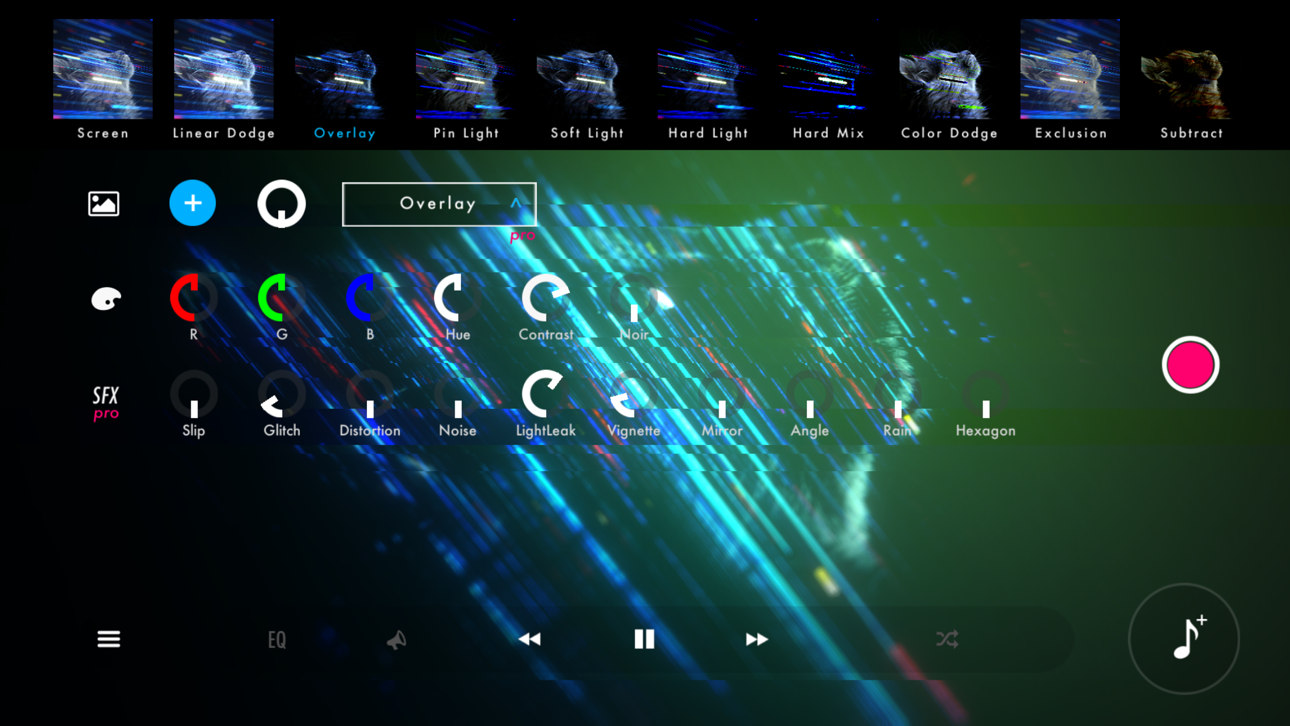
使用 STAELLA 將您的音樂轉變為迷人的視覺體驗,這是一款音樂視覺化工具 Mod IPA,可解鎖高級創意工具。這個音頻反應播放器讓您匯入音樂和照片,然後使用專業效果、螢幕濾鏡和壁紙混合模式即時自訂令人驚豔的視覺效果。將您的創作錄製為影片,提升您體驗聲音的方式。
- 免費應用內購買 → 無需付費解鎖所有應用內購買
此應用程式也內建 iGameGod,讓你可以使用 Auto Touch 自動執行重複操作、透過 App Speed Manager 調整遊戲速度、使用 Memory Engine 修改記憶體數值,以及更多強大的 iOS 遊戲工具。
從上方連結下載 STAELLA - Music Visualizer Modded modded IPA。點選安裝按鈕並依照畫面指示在 iPhone、iPad 或 Apple Silicon 上安裝此 iOS 應用程式修改版。
需要更多協助?請查看我們的 iOSGods 應用程式常見問題 以獲得詳細解答與疑難排解。
Real-time music visualization.
30 Visuals × 70 Shapes — every play, a different piece.
■ Design the visuals from a free combination
4 categories with 30 Visuals and 70 Shapes, Knobs, Text, backgrounds, 10 Screen Effects and 10 Wallpaper Blends. Layer them into anything from a club-style spectrum to an ambient nebula.
On HDR displays, glows and gradients render with brightness beyond SDR.
■ Two recording modes for different intents
Recording keeps every knob move and Visual switch you make. Export locks the UI so a stable, hands-off render finishes on its own.
Both hide the UI, support up to 4K with HDR export, and can auto-record a full song in Playlist mode.
■ Four audio sources
Files (music on device; iOS also imports from the iTunes library)
Microphone (low-latency input)
Simulation (visuals keep moving with no source)
AUv3 (visualize plugin audio)
▸ Time-synced lyrics
Songs available in a supported lyric database can display lyrics in time with the music. Song title and artist name too.
▸ External display output (AirPlay / HDMI adapters)
Connect a TV or projector via iOS Screen Mirroring (AirPlay) or an HDMI adapter.
The visuals go full screen while the UI stays on your device.
■ Play with whatever's in your hand
Touch and flick
iPad + Magic Keyboard shortcuts
MIDI controllers (long-press any knob to assign, BLE MIDI supported)
Gamepad (D-pad, buttons, sticks)
■ Where to use it
· VJ sets at clubs, live shows and streams
· Music videos and lyric videos for social
· Screen visuals for a room or a party
■ Notes
· DRM-protected tracks (e.g. Apple Music) can't be played.
· For issues or requests, reach out via in-app feedback or support.

- 未越獄/受限或已越獄的 iPhone 或 iPad。
- Sideloadly 或替代方案。
- 執行 Windows/macOS/Linux 且已安裝 iTunes 的電腦。
步驟 1: 透過上方連結將已破解的 .IPA 檔案下載到您的電腦。若要從 iOSGods App 下載,請參閱我們的 iOSGods App IPA 下載教學,其中包含影片範例。
步驟 2: 下載 Sideloadly 並將其安裝在您的 Windows 或 Mac 上。
步驟 3: 在電腦上開啟 Sideloadly,連接您的 iOS 裝置,並等待裝置名稱出現在 Sideloadly 中。
步驟 4: 當 Sideloadly 辨識到您的 iOS 裝置後,將下載好的修改版 .IPA 檔案拖曳並放到 Sideloadly 應用程式中。
步驟 5: 輸入您的 Apple Account 電子郵件,然後按下「Start」。系統會要求您輸入密碼,請依指示提供所需資訊。
步驟 6: 等待 Sideloadly 完成已破解 IPA 的旁載/安裝。如果安裝過程中發生問題,請閱讀下方的注意事項。
步驟 7: 安裝完成並在主畫面上看到該應用程式後,您需要前往 設定 → 一般 → 描述檔 / VPN 與裝置管理。進入後,點選您在步驟 6 中輸入的電子郵件,然後點選「信任 [email protected]」。
步驟 8: 現在回到主畫面並開啟新安裝的應用程式,一切應該都能正常運作。您可能需要依照遊戲內破解彈出視窗中的進一步指示操作。
注意: 在 iOS/iPadOS 16 及更新版本上,您必須 啟用開發者模式。若使用免費的 Apple Developer 帳號,您將需要每 7 天重複此程序。如有任何疑問或問題,請閱讀我們的 主題中的 Sideloadly 常見問題區段。
Hack Features:
- Inf Coins (Spend)
App Installation Instructions:
---------------------------------------------------------
----------------------------------------------------------
If you require more information or help, please read our Frequently Asked Questions topic on iOSGods.com.
----------------------------------------------------------
--------------------------------------------------