Accesso richiesto
Accedi con il tuo account iOSGods per continuare.
Accedi con il tuo account iOSGods per continuare.
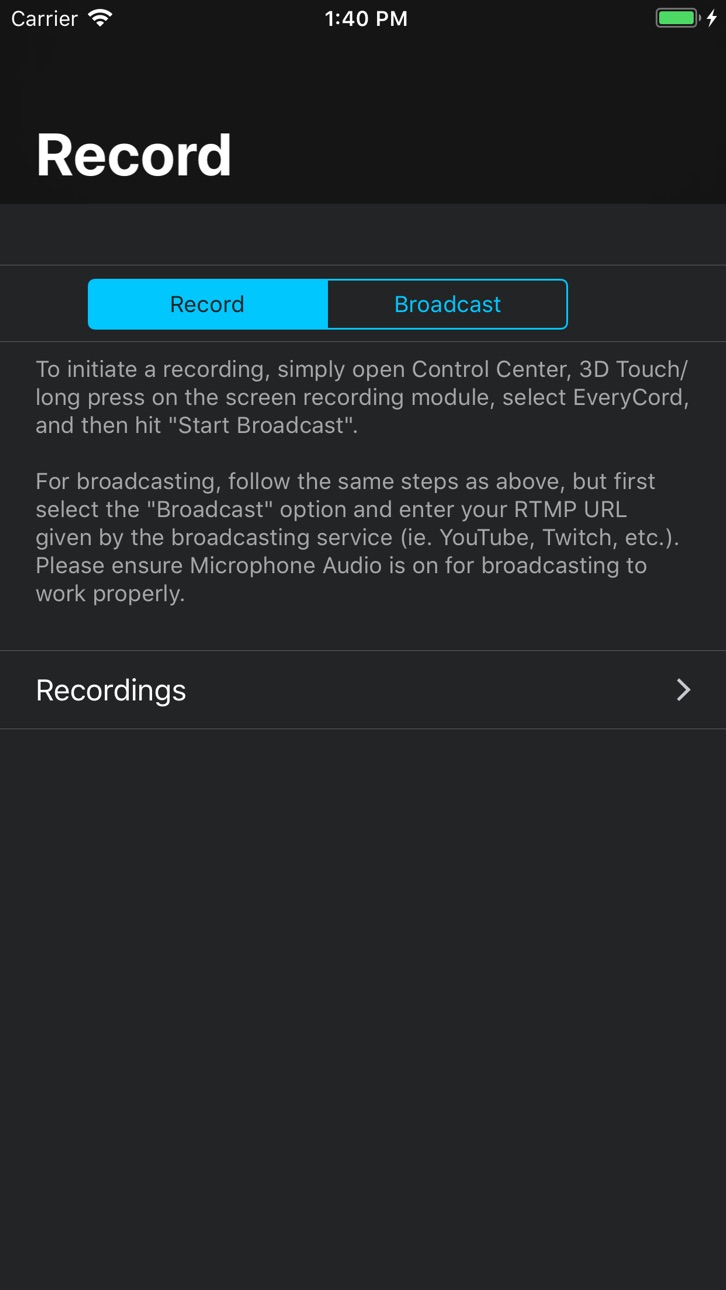
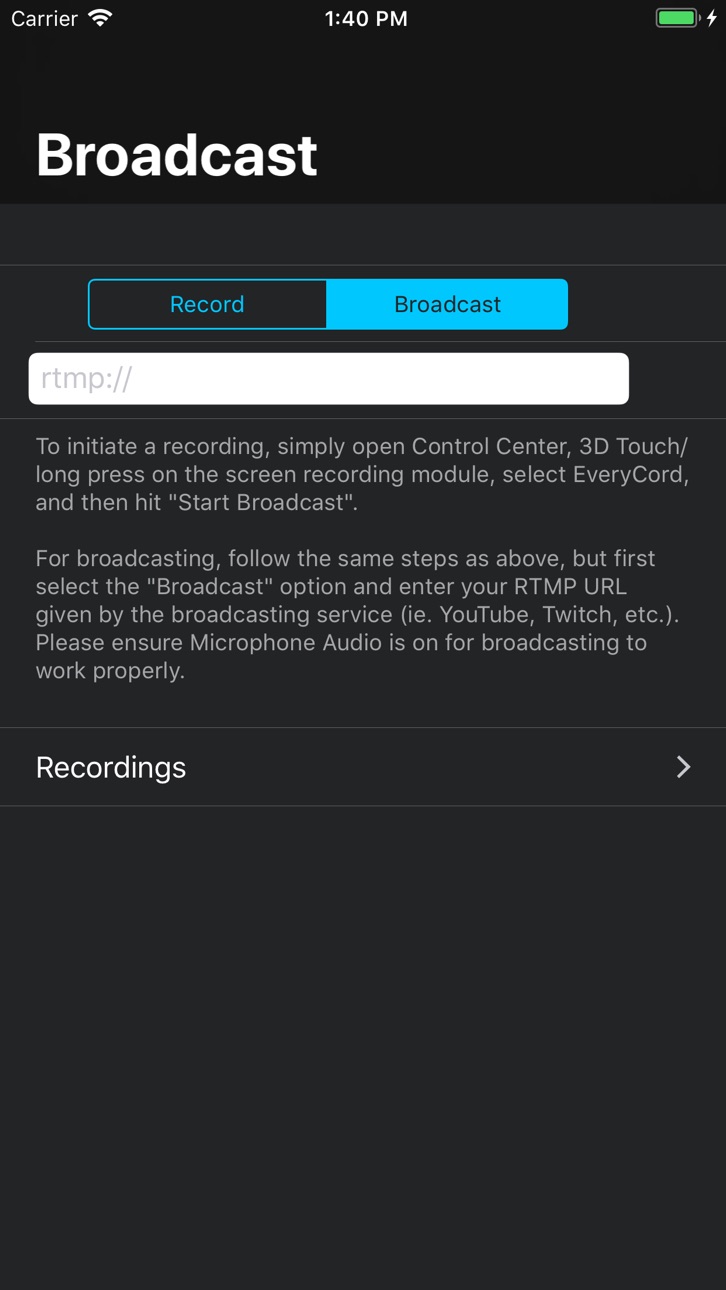
Registra l'intero schermo iOS in full HD e 60 FPS con EveryCord, Record & Broadcast, una potente mod IPA per la registrazione dello schermo che cattura giochi, app e momenti live direttamente sul tuo dispositivo. Questo hack sblocca funzioni di streaming premium, permettendoti di trasmettere in diretta su YouTube, Twitch e servizi compatibili con RTMP senza restrizioni. Personalizza ogni aspetto delle tue registrazioni e goditi una cattura fluida e a livello di dispositivo che funziona su tutte le tue app.
Questa app include anche iGameGod, che ti offre accesso ad Auto Touch per automatizzare attività ripetitive, App Speed Manager per regolare la velocità di gioco, modifica dei valori con Memory Engine e altri potenti strumenti per giochi iOS.
Scarica EveryCord – Record & Broadcast modded IPA dai link sopra. Tocca il pulsante di installazione e segui le istruzioni per installare questo hack iOS sul tuo iPhone, iPad o Mac con Apple Silicon.
Hai bisogno di altro aiuto? Consulta le nostre Domande frequenti sull'app iOSGods per risposte dettagliate e consigli per la risoluzione dei problemi.
EveryCord is the most powerful screen recorder and live-streaming app for iPhone – and it’s completely free. Record anything on your screen with FaceCam reactions, add voice narration, then edit and share your videos instantly. Our v2.4 release unlocks all features at no cost (no subscriptions or ads). You can go live on YouTube or Twitch right from the app by signing in to your account. Unlike competitors, EveryCord also auto-generates subtitles for your recordings, making tutorials and gameplay videos accessible and engaging.
- High-Quality Screen Recording: CaptureHD records your screen in crisp detail for games, apps, or video calls. Our app records both video and audio (even system sound and mic) so no moment is missed.
- Live Streaming: Go LIVE in one tap to YouTube/Twitch (RTMP). Just sign in, choose your stream, and share your screen in real time. Perfect for gaming streams or live tutorials.
- FaceCam Overlay: Add your face and reactions with an adjustable picture-in-picture camera bubble. You can place the FaceCam anywhere on screen while recording or streaming. Reaction videos and tutorial demos become far more personal and engaging.
- Built-In Video Editor: Trim, crop, and enhance your recordings without leaving the app. Merge multiple clips, add background music, or apply filters to polish your video. (We drew inspiration from apps like Go Record which tout built-in editing.)
- Automatic Subtitles: EveryCord can auto-generate subtitle captions from your voiceovers. Edit or translate them on-device – ideal for making content accessible or for international viewers. No other iOS screen-recorder offers integrated subtitle transcription out of the box.
- 100% Free, No Limits: Every premium feature is unlocked free in v2.4. You won’t see ads or paywalls. We believe in transparent pricing: if our app says “free,” it truly is free, with no hidden fees or “locked” features. This openness builds trust and encourages downloads.
- Privacy & Security: Your recordings stay on your device unless you choose to upload them. We do not require account sign-ups (except optional YouTube login), and no data is collected or shared.
EveryCord is designed for creators, educators, gamers, and anyone who wants to easily capture and share their iPhone screen. Whether you’re teaching a lesson, demoing an app, streaming gameplay, or creating a how-to video, EveryCord has you covered. Download now and experience the all-in-one recorder that Apple users are talking about!
What’s New in v2.4:
• All Features Unlocked – 100% Free: Major update removes all paywalls and ads. No subscription needed – everything is available at no charge.
• YouTube Live Sign-In: Stream directly to YouTube via account login (plus fixed Twitch stability).
• Subtitle Generator: New feature to add/edit video subtitles automatically.
• Facecam & Streaming Improvements: Faster camera startup, smoother PiP movement, and new flip/rotate camera controls.
• Bug Fixes & Polish: General performance and UI refinements for iOS 17.
Screenshot © rispettivi proprietari · App Store


iOSGods non è affiliata, approvata né sponsorizzata da Apple Inc., Google LLC o dagli sviluppatori delle app elencate qui. Apple, iOS e App Store sono marchi di Apple Inc. Android e Google Play sono marchi di Google LLC. Tutti gli altri nomi delle app, icone, immagini e marchi appartengono ai rispettivi proprietari.

- iPhone o iPad non jailbroken/jailed oppure jailbroken.
- Sideloadly o alternative.
- Computer con Windows/macOS/Linux con iTunes installato.
PASSO 1: Scarica il file .IPA pre-modificato dal link sopra sul tuo computer. Per scaricarlo dall'iOSGods App, consulta il nostro Tutorial download IPA dell'iOSGods App, che include un esempio video.
PASSO 2: Scarica Sideloadly e installalo sul tuo Windows o Mac.
PASSO 3: Apri Sideloadly sul tuo computer, collega il tuo dispositivo iOS e attendi finché il nome del dispositivo non appare in Sideloadly.
PASSO 4: Una volta riconosciuto il tuo iDevice, trascina il file .IPA moddato che hai scaricato e rilascialo nell'applicazione Sideloadly.
PASSO 5: Inserisci l'email del tuo Apple Account, poi premi “Start”. Ti verrà quindi chiesto di inserire la password. Procedi e fornisci le informazioni richieste.
PASSO 6: Attendi che Sideloadly completi il sideload/installazione dell'IPA modificata. Se ci sono problemi durante l'installazione, leggi la nota qui sotto.
PASSO 7: Una volta completata l'installazione e vista l'app sulla schermata Home, dovrai andare in Impostazioni → Generali → Profili / Gestione VPN e dispositivi. Una volta lì, tocca l'email inserita al passo 6 e poi tocca “Autorizza [email protected]”.
PASSO 8: Ora vai sulla schermata Home e apri l'app appena installata: tutto dovrebbe funzionare correttamente. Potrebbe essere necessario seguire ulteriori istruzioni specifiche all'interno del popup dell'hack nel gioco.
NOTA: Per iOS/iPadOS 16 e versioni successive, devi attivare la Modalità sviluppatore. Per gli account Apple Developer gratuiti, dovrai ripetere questa procedura ogni 7 giorni. Se hai domande o problemi, leggi la nostra sezione FAQ Sideloadly del topic.
Game Name iOS Mod IPA is an action adventure game enhanced with powerful gameplay boosts and quality-of-life improvements. Win battles faster, earn rewards quicker, and enjoy uninterrupted play without ads.
- Unlimited Gold - spend freely to unlock premium content
- Damage Multiplier - deal significantly more damage in combat
- Defense Multiplier - take less damage and survive longer
- Reward Multiplier - earn more loot from every battle
- Max Level - instantly reach the highest player rank
- No Ads - play without interruptions or advertisements
This app also comes with iGameGod, giving you access to Auto Touch to automate repetitive tasks, App Speed Manager for adjustable gameplay speed, Memory Engine value editing, and more powerful iOS game tools.
Scarica Game Name Mod IPA dai link sopra. Tocca il pulsante di installazione e segui le istruzioni per installare questo hack iOS sul tuo iPhone, iPad o Mac con Apple Silicon.
Hai bisogno di altro aiuto Consulta le nostre Domande frequenti sull'app iOSGods per risposte dettagliate e consigli per la risoluzione dei problemi.
----------------------------------------------------------
--------------------------------------------------