ログインが必要
iOSGodsアカウントでサインインして続けてください。
iOSGodsアカウントでサインインして続けてください。
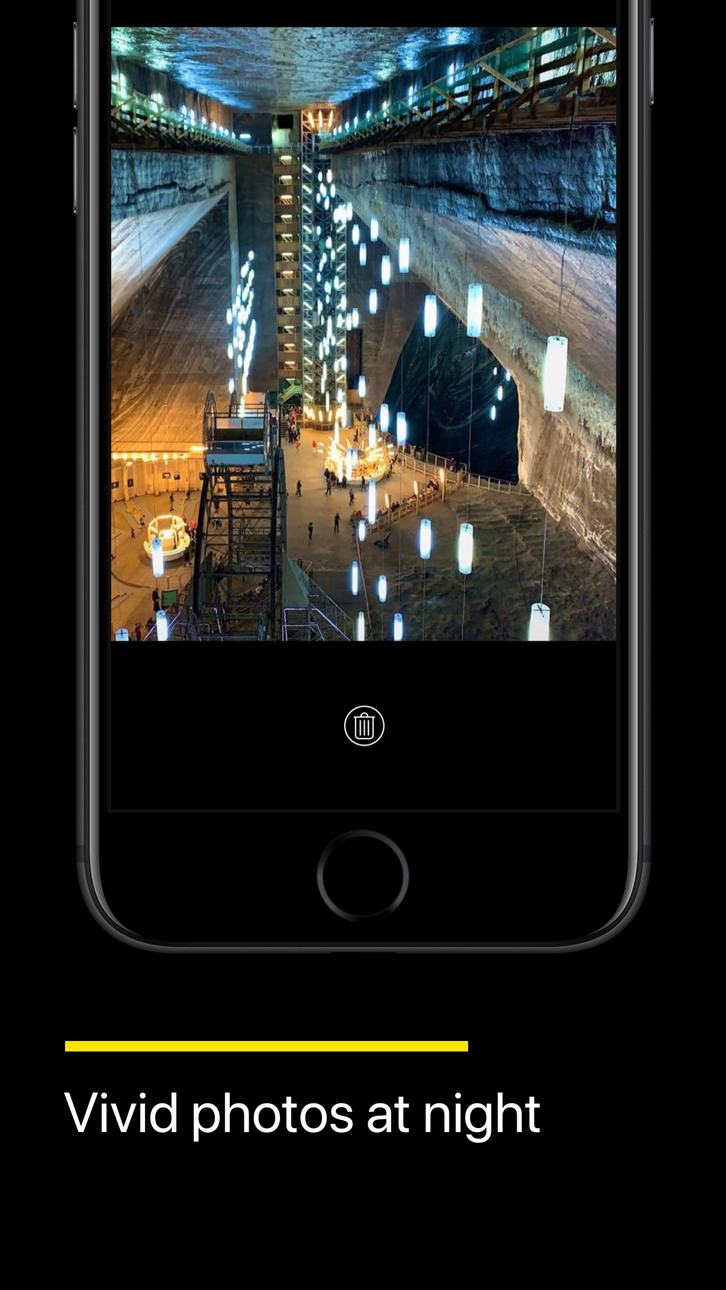
iPhoneでNeuralCam - Night Mode Cameraの高度なニューラルネットワーク処理を使用して、暗いシーンを鮮明で鮮やかな画像に変換し、iPhoneの標準カメラをはるかに上回る夜間写真を撮影できます。このアプリは9to5Macから最高のiPhone夜間写真ツールとして高く評価されており、プレミアム夜間モード機能を無料のMod IPAとしてアンロック済みで利用できます。
このアプリにはiGameGodも搭載されており、繰り返し作業を自動化するAuto Touch、ゲーム速度を調整できるApp Speed Manager、Memory Engineによる値の編集など、強力なiOSゲーム用ツールをご利用いただけます。
NeuralCam - Night Mode Camera modded IPAを上のリンクからダウンロードします。インストールボタンをタップし、画面の指示に従ってiPhone、iPad、Apple SiliconにこのiOSアプリハックをインストールします。
さらにヘルプが必要ですか? 詳しい回答とトラブルシューティングはiOSGodsアプリ よくある質問をご覧ください。
Create stunning portraits and master DSLR-level photography with AI-driven features that help you capture remarkable shots in any lighting condition.
NEW - Photo Coach: Your pocket portrait expert—blends ChatGPT's intelligence with NeuralCam's pro tools to guide you through composing, capturing, and perfecting professional portraits and other shots in real-time while building lasting skills.
Auto-mode for multiple features:
Auto-Portrait Mode: A fully AI-powered Portrait Mode without the limitations of the built-in portrait mode. Add professional depth to any portrait—works with all lenses, subjects, and distances, even in low light—with adjustable intensity for the perfect feel.
Auto Night Mode on All iPhones, All camera lenses with manual brightness optimization for skin tones
Auto AI Illumination: Brighter portraits without the flat HDR look
Quick-Editing mode: Perfect your portraits with a few taps before saving
AI & Classic editing controls:
AI Portrait Blur strength
AI Face Illumination strength
AI Style type and strength with skin tone preservation
Classic editing controls including exposure, contrast, shadows, highlights, and more
------ MAIN FEATURES: PERFECT PORTRAITS, NIGHT & DAY -------
Best-in-class Night Mode: The original NeuralCam feature - now optimized for portraits on All iPhones, All Cameras
Enhanced Daytime HDR: Capture brighter portraits with more detail and less noise
48 Megapixel AI Upscaled Photos: Professional-grade detail in every portrait
AI-Enhanced Macro Mode: Perfect for creative portrait details
Smart Color Grading: Elevate your portraits with AI styles based on professional photography
Auto-Remove People: Clean backgrounds for your portraits
Auto-Background Replacement: Studio-quality portrait backgrounds instantly
Lock screen Widget: Never miss the perfect portrait moment
------- ADDITIONAL FEATURES -------
Auto and Manual Night Mode
Auto and Manual Daytime Mode
AI Enhanced Macro Mode (including Night Macro Mode)
Manual Computational Photography Controls
Multiple Capturing Modes: High Detail, Low Noise, Unprocessed
Merging of 1-12 frames
24MP & 48MP AI Super-Resolution
12MP AI Detail Enhancement
Multiple AI Brightening Modes - now including NeuralHDR specially tailored for daytime photos
Classic Manual Photography Controls for White Balance, Exposure, and Focus
Timer
Tripod Mode - allows longer exposure time in really dark situations
Gentle Torch - so you can lightly illuminate your scene if needed, in very low light
Photo Format (HEIC/JPEG/TIFF)
Grid Options
Happy capturing!
Send us any feedback and feature requests either by leaving a comment on this store page, or by writing us at: [email protected] Enjoy!
スクリーンショット © 各権利者 · App Store


iOSGods は Apple Inc.、Google LLC、および掲載アプリの開発者と提携しておらず、承認や協賛も受けていません。Apple、iOS、App Store は Apple Inc. の商標です。Android および Google Play は Google LLC の商標です。その他のアプリ名、アイコン、画像、商標はすべて各権利者に帰属します。

- 脱獄/Jailed済みまたは脱獄済みのiPhoneまたはiPad。
- Sideloadlyまたは代替手段。
- iTunesがインストールされているWindows/macOS/Linuxを実行しているコンピュータ。
ステップ1: 上のリンクから事前にハックされた.IPAファイルをコンピュータにダウンロードします。iOSGodsアプリからダウンロードする方法は、ビデオ例付きのiOSGodsアプリIPAダウンロードチュートリアルをご覧ください。
ステップ2: SideloadlyをダウンロードしてWindowsまたはMacにインストールします。
ステップ3: コンピュータでSideloadlyを開き、iOSデバイスを接続して、デバイス名がSideloadlyに表示されるまで待ちます。
ステップ4: iDeviceが認識されたら、ダウンロードしたModされた.IPAファイルをSideloadlyアプリにドラッグ&ドロップします。
ステップ5: Apple Accountのメールアドレスを入力し、「Start」を押します。次にパスワードの入力を求められます。必要な情報を入力してください。
ステップ6: Sideloadlyがハックされたipaのサイドロード/インストールを完了するのを待ちます。インストール中に問題が発生した場合は、以下の注意事項をお読みください。
ステップ7: インストールが完了し、ホーム画面にアプリが表示されたら、設定 → 一般 → プロファイル / VPNとデバイス管理に移動する必要があります。そこで、ステップ6で入力したメールをタップし、「Trust [email protected]」をタップします。
ステップ8: ホーム画面に戻り、新しくインストールされたアプリを開けば、すべて正常に動作するはずです。ゲーム内のハックのポップアップで、アプリごとの追加指示に従う必要がある場合があります。
注意: iOS/iPadOS 16以降では、デベロッパモードを有効にするが必要です。無料のApple Developerアカウントの場合、このプロセスを7日ごとに繰り返す必要があります。質問や問題がある場合は、トピックのSideloadly FAQセクションをお読みください。
Game Name iOS Mod IPA is an action adventure game enhanced with powerful gameplay boosts and quality-of-life improvements. Win battles faster, earn rewards quicker, and enjoy uninterrupted play without ads.
- Unlimited Gold - spend freely to unlock premium content
- Damage Multiplier - deal significantly more damage in combat
- Defense Multiplier - take less damage and survive longer
- Reward Multiplier - earn more loot from every battle
- Max Level - instantly reach the highest player rank
- No Ads - play without interruptions or advertisements
This app also comes with iGameGod, giving you access to Auto Touch to automate repetitive tasks, App Speed Manager for adjustable gameplay speed, Memory Engine value editing, and more powerful iOS game tools.
Game Name Mod IPAを上のリンクからダウンロードします。インストールボタンをタップし、画面の指示に従ってiPhone、iPad、Apple SiliconにこのiOSアプリハックをインストールします。
さらにヘルプが必要ですか 詳しい回答とトラブルシューティングはiOSGodsアプリ よくある質問をご覧ください。
----------------------------------------------------------
--------------------------------------------------