ログインが必要
iOSGodsアカウントでサインインして続けてください。
iOSGodsアカウントでサインインして続けてください。

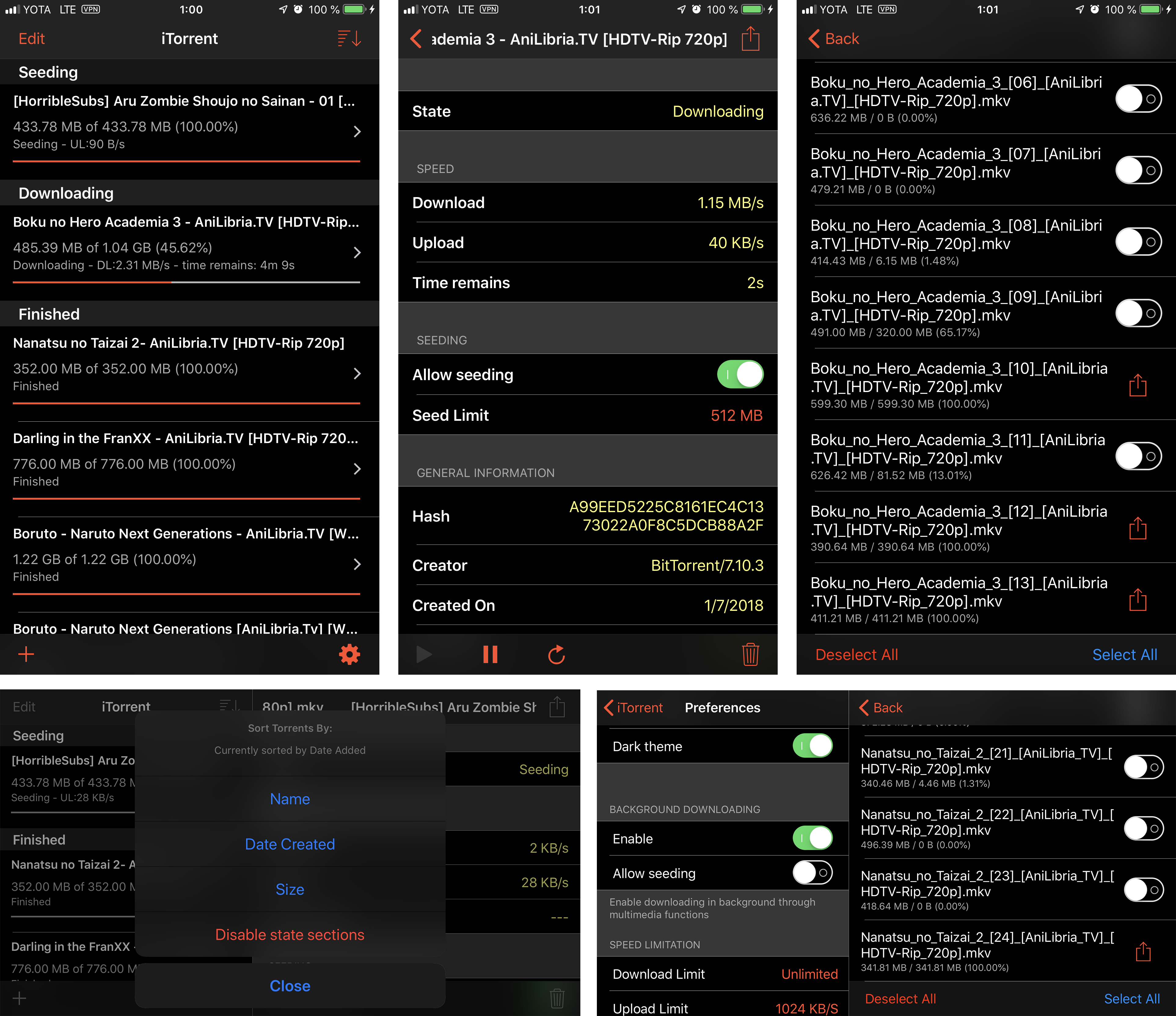
iPhoneまたはiPadでトレントを直接ダウンロードできるiTorrentsは、デバイスにフルトレントおよびマグネットリンクサポートをもたらすカスタムiOSアプリです。バックグラウンドでファイルをストリーミングし、Safariからトレントを追加し、iOSを離れることなく細かいファイル選択でダウンロードを管理できます。
大容量ファイルの取得、ファイルアプリ経由での共有、または組み込みFTPサーバーの使用など、このMod IPAはモバイルでデスクトップクラスのトレント制御を提供します。ダークテーマとプッシュ通知があなたのワークフローをスムーズに保ちます。
- バックグラウンドでダウンロード → アプリを閉じてもトレントのダウンロードが続行されます
- 共有メニューからトレントファイルを追加(Safariおよびその他のアプリ) → ブラウザまたは他のアプリから直接.torrentファイルをインポートします
- Safariからマグネットリンクを直接追加 → Safariのマグネットリンクをタップしてすぐにダウンロードを開始します
- ファイルアプリにファイルを保存(iOS 11以上) → ネイティブファイルアプリを通じてダウンロードしたファイルにアクセスして管理します
- アプリから直接ファイルを共有 → 完了したダウンロードを他のアプリまたはユーザーと共有します
- リンクでトレントをダウンロード → トレントURLを貼り付けてダウンロードを開始します
- マグネットでトレントをダウンロード → マグネットリンクを使用して即座にトレントを開始します
- トレントダウンロード時に通知を送信 → ダウンロード完了時にアラートを受け取ります
- FTPサーバー(不安定) → 他のデバイスからFTP経由でファイルにアクセスします
- ダウンロードするファイルを選択 → トレント内のどのファイルをダウンロードするかを選択します
- UIをダークテーマに変更 → ダークモードに切り替えて快適に表示します
- 重要な情報:
このアプリはFirebase Analyticsを使用しており、デバイスから次の情報を収集します:
インターネットプロバイダーの国
アプリの作業セッションの時間
すべてのデータは統計として表示され、個人情報を取得するために使用することはできません
また、このアプリはFirebase Crashlyticsを使用しており、アプリケーションがクラッシュした場合に次の情報を収集します:
デバイスのモデル(例えばiPhone XまたはiPad Pro(10.5インチ))
デバイスの向き
RAMとROMの空き容量
iOSバージョン
クラッシュの時間
スタックが発生したスレッドの詳細ログ
すべての情報はバグ修正とこのアプリの品質向上に使用されます
iTorrents modded IPAを上のリンクからダウンロードします。インストールボタンをタップし、画面の指示に従ってiPhone、iPad、Apple SiliconにこのiOSアプリハックをインストールします。
さらにヘルプが必要ですか? 詳しい回答とトラブルシューティングはiOSGodsアプリ よくある質問をご覧ください。
スクリーンショット © 各権利者 · App Store

iOSGods は Apple Inc.、Google LLC、および掲載アプリの開発者と提携しておらず、承認や協賛も受けていません。Apple、iOS、App Store は Apple Inc. の商標です。Android および Google Play は Google LLC の商標です。その他のアプリ名、アイコン、画像、商標はすべて各権利者に帰属します。
- 脱獄/Jailed済みまたは脱獄済みのiPhoneまたはiPad。
- Sideloadlyまたは代替手段。
- iTunesがインストールされているWindows/macOS/Linuxを実行しているコンピュータ。
ステップ1: 上のリンクから事前にハックされた.IPAファイルをコンピュータにダウンロードします。iOSGodsアプリからダウンロードする方法は、ビデオ例付きのiOSGodsアプリIPAダウンロードチュートリアルをご覧ください。
ステップ2: SideloadlyをダウンロードしてWindowsまたはMacにインストールします。
ステップ3: コンピュータでSideloadlyを開き、iOSデバイスを接続して、デバイス名がSideloadlyに表示されるまで待ちます。
ステップ4: iDeviceが認識されたら、ダウンロードしたModされた.IPAファイルをSideloadlyアプリにドラッグ&ドロップします。
ステップ5: Apple Accountのメールアドレスを入力し、「Start」を押します。次にパスワードの入力を求められます。必要な情報を入力してください。
ステップ6: Sideloadlyがハックされたipaのサイドロード/インストールを完了するのを待ちます。インストール中に問題が発生した場合は、以下の注意事項をお読みください。
ステップ7: インストールが完了し、ホーム画面にアプリが表示されたら、設定 → 一般 → プロファイル / VPNとデバイス管理に移動する必要があります。そこで、ステップ6で入力したメールをタップし、「Trust [email protected]」をタップします。
ステップ8: ホーム画面に戻り、新しくインストールされたアプリを開けば、すべて正常に動作するはずです。ゲーム内のハックのポップアップで、アプリごとの追加指示に従う必要がある場合があります。
注意: iOS/iPadOS 16以降では、デベロッパモードを有効にするが必要です。無料のApple Developerアカウントの場合、このプロセスを7日ごとに繰り返す必要があります。質問や問題がある場合は、トピックのSideloadly FAQセクションをお読みください。
Game Name iOS Mod IPA is an action adventure game enhanced with powerful gameplay boosts and quality-of-life improvements. Win battles faster, earn rewards quicker, and enjoy uninterrupted play without ads.
- Unlimited Gold - spend freely to unlock premium content
- Damage Multiplier - deal significantly more damage in combat
- Defense Multiplier - take less damage and survive longer
- Reward Multiplier - earn more loot from every battle
- Max Level - instantly reach the highest player rank
- No Ads - play without interruptions or advertisements
This app also comes with iGameGod, giving you access to Auto Touch to automate repetitive tasks, App Speed Manager for adjustable gameplay speed, Memory Engine value editing, and more powerful iOS game tools.
Game Name Mod IPAを上のリンクからダウンロードします。インストールボタンをタップし、画面の指示に従ってiPhone、iPad、Apple SiliconにこのiOSアプリハックをインストールします。
さらにヘルプが必要ですか 詳しい回答とトラブルシューティングはiOSGodsアプリ よくある質問をご覧ください。
----------------------------------------------------------
--------------------------------------------------